Getting started Scantool setup
To view problem
codes in your vehicle, turn off the check
engine light and listen in on messages
being sent over the vehicle network you need three things,
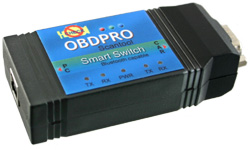
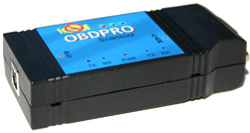
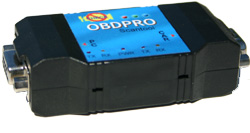
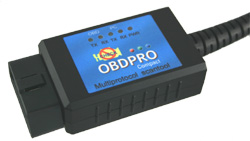
- The OBDPro scan tool.
- A PC computer, a Pocket PC PDA, or PalmOS
to look at the OBD data.
- A software program running on
your computer to capture the OBD data.
The above setup offers maximum functionality
in working with OBD2 systems and vehicle
networks. The ObdPro setup acts as a virtual
Swiss army knife in working with in vehicle
networks.
Other handheld OBD II tools available in
the market can only perform a single function of
reading the error codes and turning off the
check engine light, they cannot view traffic on
the OBD II bus, moreover when new messages are
introduced in vehicles the handheld OBD2 units
cannot read the new messages. With the OBDPro
there are no such limitations.
Some automotive repair shops charge almost
$70 just to tell you the error code on a check
engine light. You can do it for free with this
tool, moreover you can even do advanced
diagnosis such as monitoring fuel consumption
based on your driving habits and even control
some of the accessories in your vehicle via the
OBDPro scantool. See datasheet for an example of
controlling the power windows on a GM vehicle.

The above diagram illustrates how to setup the OBDPro scantool.
- Look under the dashboard of your car
and you should see a connector similar to
the one circled below, this is known as a DLC
(data link connector) and is typically located
in the drivers compartment (ocassionally on the
passenger side). Generally the DLC connector is
right below the steering column. It might have a
cover on it so look closely.
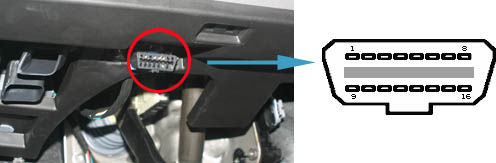
- Connect the D shaped end of the black OBD
cable to the DLC connector in your vehicle. Now
connect the small connector of the OBD II cable
supplied with your OBDPro scantool to the
scantool end labelled "CAR". At this point the power LED will
light and stay lit.
This means the unit is getting power from the
connector. Once the Red PWR LED is lit
proceed to step 3 (connecting the OBDPro
scantool to your pc)
- Connecting the OBDPro scantool to the
PC
Install a suitable diagnostic software on
your computer, We have listed some of the
popular OBD II software here. There is software
for practically all computers and even PDA's.
You can also use hyperterminal to talk to the
OBDPro scantool, please refer to the datasheet
for more info on using a serial terminal with
your OBDPro.
Connect the RS232/USB cable between your PC
and the OBDPro scantool and then launch your OBD
Diagnostic software. You will need to configure
your software so that it talks with the correct
serial port that is connected to the scantool.
The car's ignition needs to be turned on for the
OBD2 data to be available. The car does not need
to be running but the ignition key needs to be
in the start position, not accessory or off.
If you run into problems in setting up the scantool refer to the FAQ for troubleshooting hints.
If your computer does not have a Serial port
we also have a USB version available.